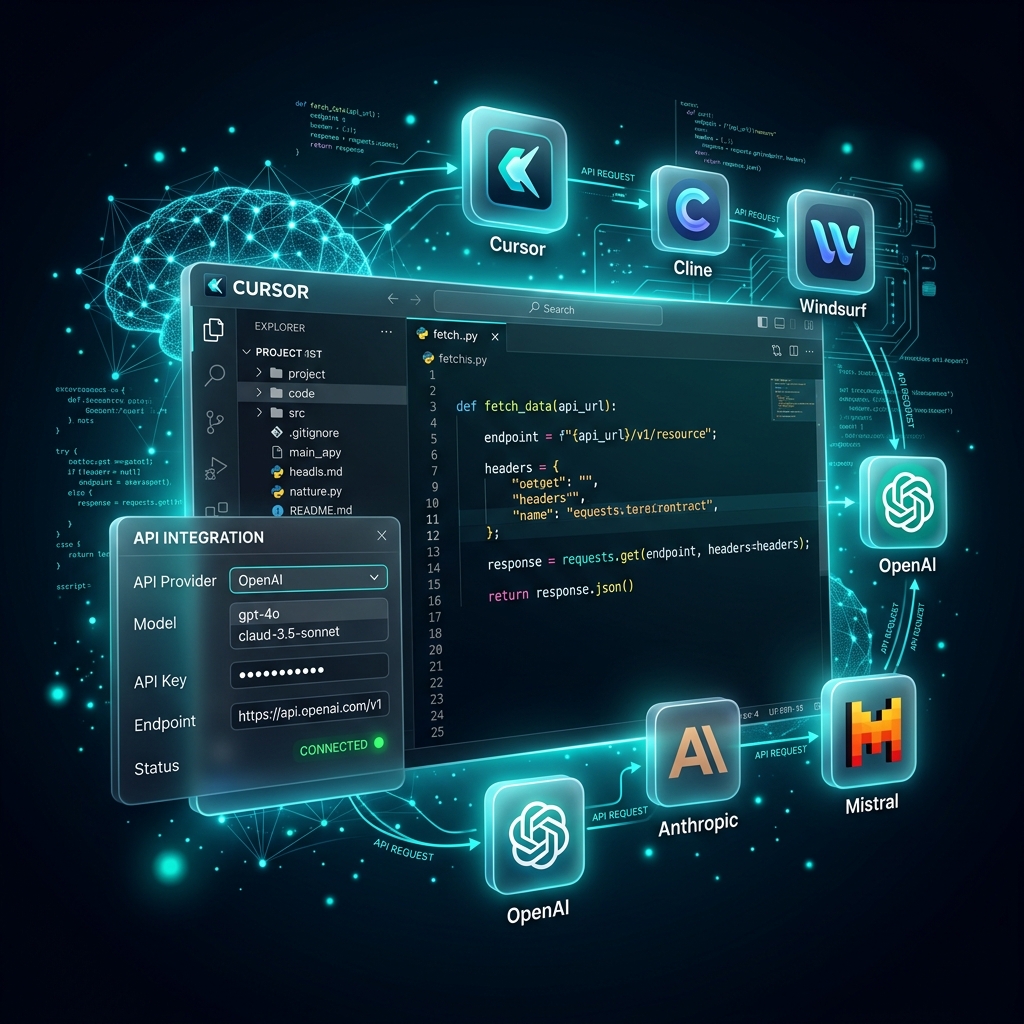
One API key, all your coding tools
Instead of managing separate API keys for Anthropic, OpenAI, and Google — configure Izzi API once and use it across all your development tools. This guide covers setup for the three most popular AI coding extensions.
Cursor setup
Step 1: Open API settings
Go to Settings → Cursor Settings → Models
Step 2: Configure OpenAI-compatible endpoint
JSON
{
  "openai.apiKey": "izzi-YOUR_KEY_HERE",
  "openai.baseURL": "https://api.izziapi.com/v1"
}
Step 3: Add models
Click "Add Model" and add these model IDs:
claude-sonnet-4-20250514— Best for code editingclaude-opus-4-20250514— Best for complex refactoringgpt-5.4— Fast completionsdeepseek-r1-0528— Free debugging
Cline setup
Step 1: Install extension
Search for Cline in VS Code Extensions (Ctrl+Shift+X)
Step 2: Configure provider
- Open Cline sidebar → Click gear icon
- Select "OpenAI Compatible"
- Base URL:
https://api.izziapi.com/v1 - API Key:
izzi-YOUR_KEY_HERE - Model:
claude-sonnet-4-20250514
Windsurf setup
Step 1: Open Cascade settings
Go to Settings → AI → Custom Provider
Step 2: Add Izzi API
JSON
{
  "provider": "openai-compatible",
  "name": "Izzi API",
  "baseURL": "https://api.izziapi.com/v1",
  "apiKey": "izzi-YOUR_KEY_HERE",
  "models": [
    "claude-sonnet-4-20250514",
    "gpt-5.4",
    "deepseek-r1-0528"
  ]
}
Troubleshooting
"Model not found" error
Make sure you're using the exact model ID. Common mistakes:
Bash
# ❌ Wrong
claude-sonnet-4
sonnet-4
claude-4-sonnet

# ✅ Correct
claude-sonnet-4-20250514
"Authentication failed" error
- Verify your key starts with
izzi- - Check your balance at izziapi.com/dashboard
- Ensure no extra spaces in the API key
Recommended model per tool
| Tool | Best model | Why |
|---|---|---|
| Cursor (Tab) | gpt-5.4 | Fastest autocompletions |
| Cursor (Composer) | claude-sonnet-4 | Best multi-file edits |
| Cline (Plan mode) | claude-opus-4 | Best planning + execution |
| Cline (Act mode) | claude-sonnet-4 | Best quality/cost balance |
| Windsurf | claude-sonnet-4 | Best overall for Cascade |